|
Trim Reports for Playback |

|

|

|

|
|
|
Trim Reports for Playback |
|
|

|
|
Trim Reports for Playback
|
Trim Reports for Playback |
|
|
|
|
|
|
Trim Reports for Playback |
|
|
|
|
It is possible to trim the top and tail of a recorded report and store this setting for playback.
|
Important Note: Trimming a report will not affect the original recording and only affects live report playback of recordings. Reports that are sent via FTP are not trimmed. |
| 1. | Tap the Activity  button in the top-right corner of the Home screen and then tap Manage Your Reports. button in the top-right corner of the Home screen and then tap Manage Your Reports. |
| 2. | Tap a category playlist to find the report you want to select and open Report screen. |
| 3. | Tap Play Report on the Report screen. |
| 4. | Tap the Edit button in the bottom left-hand corner. |
| 5. | Tap the play symbol to playback audio and determine the playback start point for the report. You can also use your finger to slide the play-head along the Scrubber Bar and skip to any point along the report timeline. |
| 6. | When you are happy with the position tap Start to program to position of the playback start marker. |
| 7. | Next playback audio to determine the end-point of the report, then tap End. |
| 8. | Tap Done in the bottom-left corner of the screen to save the report settings. |
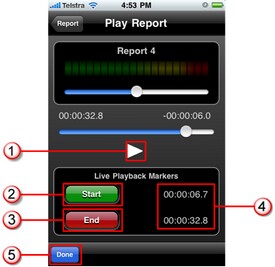
|
Feature |
Description |
1 |
Play/Pause Symbol |
Tap to play and pause the recording |
2 |
Start button |
Tap to program the start point for report playback |
3 |
End Button |
Tap to program the end point for report playback |
4 |
Start/End markers |
Time indication for start and end markers |
5 |
Done/Edit button |
Tap to edit and store settings |
